

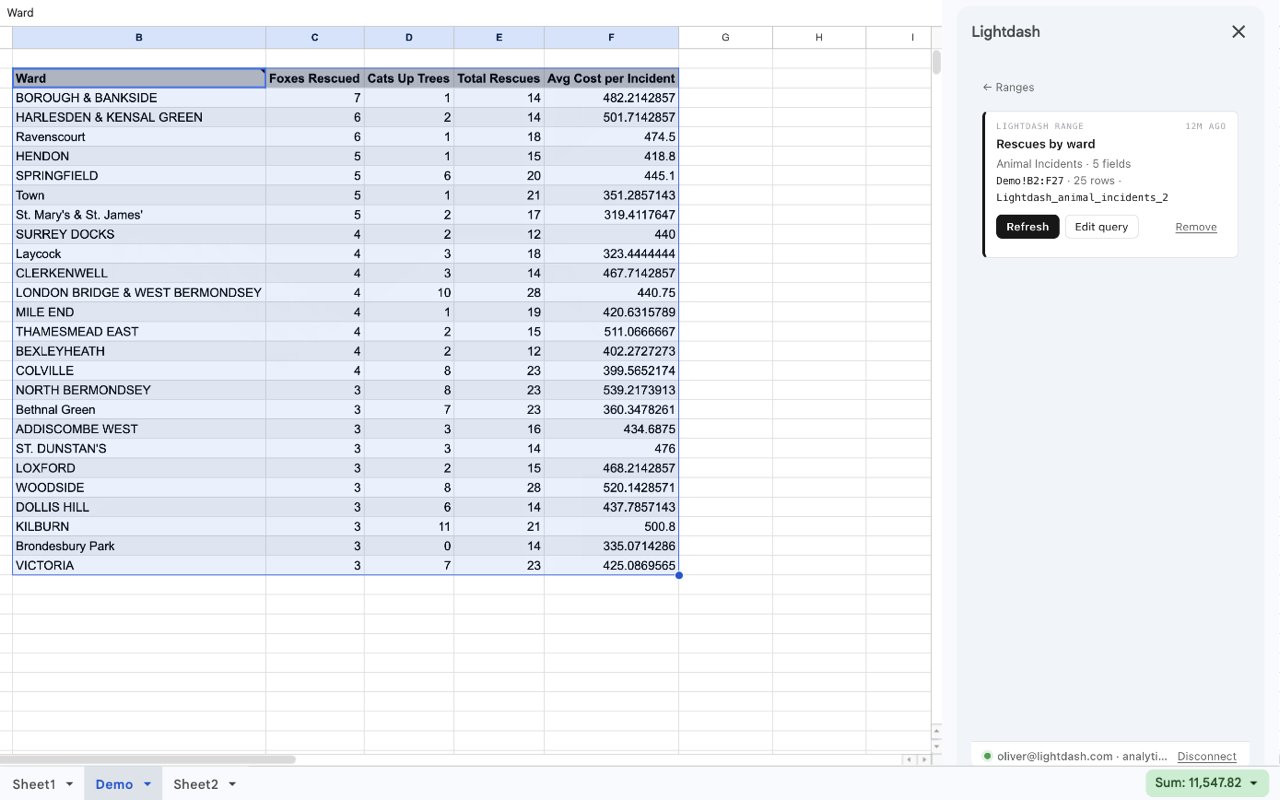
Ranges
A range is the block of cells a query wrote to, plus the query behind it. The sidebar opens on the list of ranges in the spreadsheet.- Refresh in place: re-running a range writes fresh results over the same cells. If the result grew, the range expands into empty cells below or to the right, or shifts whatever is in the way within its own columns and rows. If it shrank, the leftover cells are cleared.
- Several per sheet: put ranges side by side or on different tabs and refresh them individually, or use Refresh all from the sidebar or the Lightdash menu.
- Protected, not locked: each range is a named range with a warning-only protection. Editing a cell inside one shows a “Heads up” prompt rather than blocking the edit, so shared sheets stay editable.
- Usable in formulas: the named range (for example
Lightdash_orders) works anywhere you’d reference cells, such as=SUM(Lightdash_orders). - Survives edits around it: inserting or deleting rows and columns elsewhere in the sheet keeps the range attached to its cells.
- Shared with collaborators: ranges are stored in the spreadsheet, so anyone who opens it sees the same list. Refreshing needs a Lightdash login, so each person connects their own account. Ranges are not carried over by File → Make a copy.
Build a query
- Select the cell where the results should start and choose New query.
- Pick a project, then an explore, and add dimensions and metrics. Drag a dimension into Columns to pivot.
- Adjust filters. Filters defined in your dbt models are respected:
required_filtersare prefilled and can’t be removed (values are still editable), whiledefault_filtersare prefilled but can be adjusted or removed. Add your own dimension and metric filters on top. - Choose Insert. The sidebar shows where the results will go and follows your selection while you build. If the selected cell is inside an existing range, pick a cell outside it first.
Manage a range
Select a range in the sidebar list to open it. From there you can:- Refresh to re-run the query.
- Edit query to reopen the builder with the saved query loaded. Update range rewrites the same cells with the new result.
- Rename by selecting the range’s name.
- Remove to delete the saved query and its protection, keeping or clearing the cells.